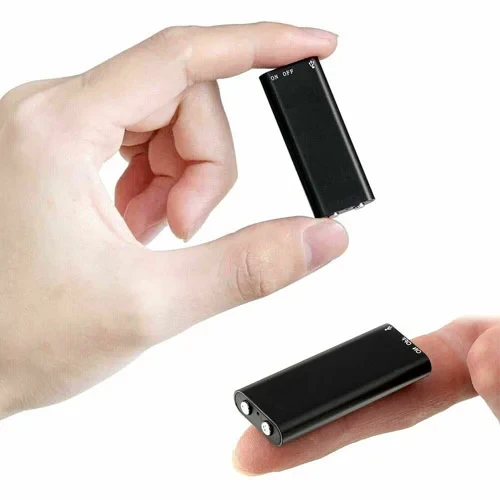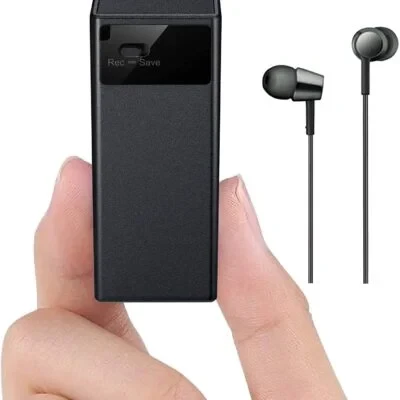







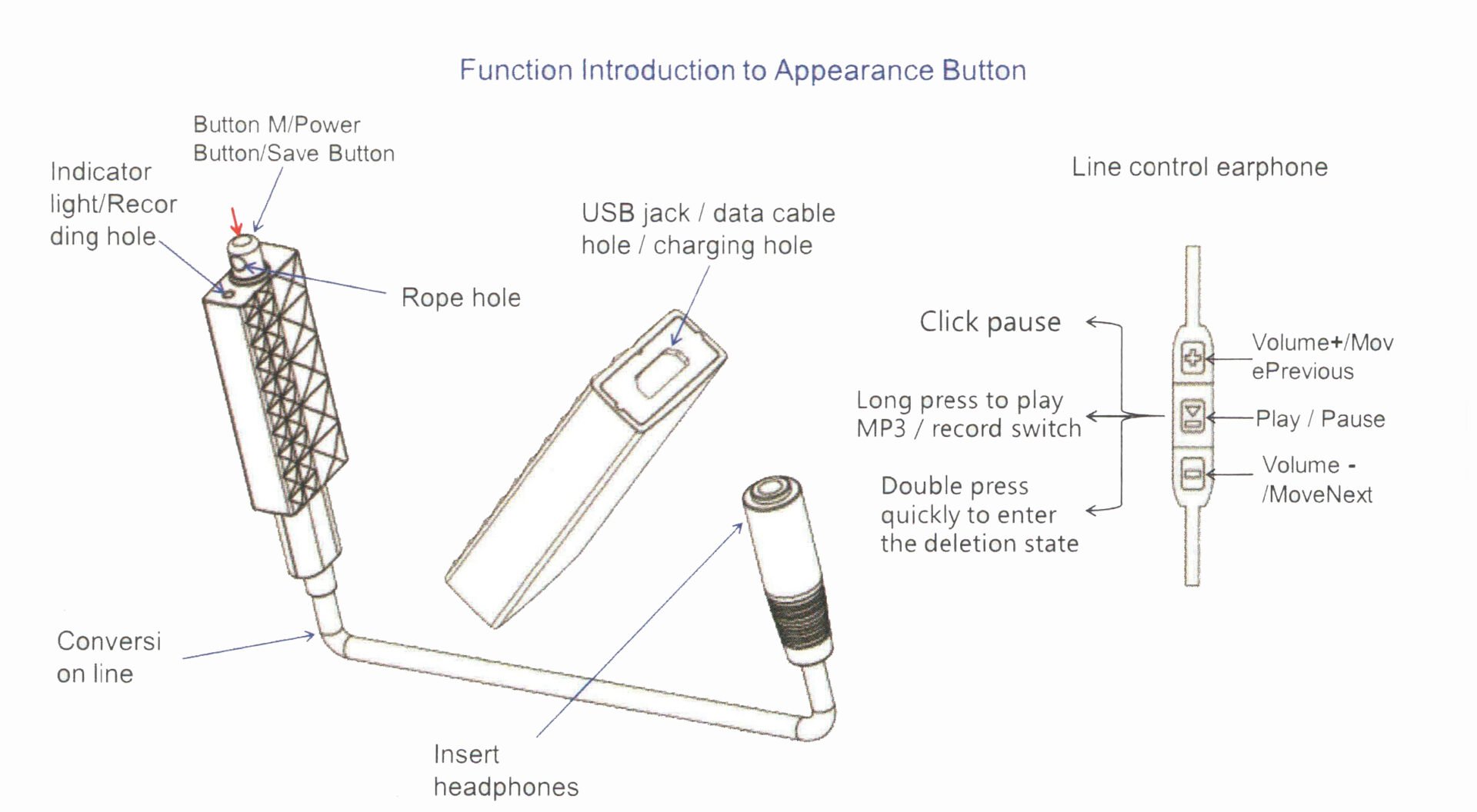
Without headphones, long press the M button, and the red light will go on. After 3 quick flashes, the red light will go off to start recording of Hidden Keychain Audio Recorder. At the end of the recording, long press the M button again. At this time, the blue light flashes for 3 times before saving and shutting down.
* Note: during recording, there is no sound or light. Do not connect to the computer, or you will lose the file while you are recording. Check whether the machine is in a recording state. In any case, click the M button, and the red light flashes, proving that the machine is recording.
Play: plug in the earphone, long press the M button, and let go when the blue light is on, then the machine turns on and plays MP3 automatically.
During the playback in Hidden Keychain Audio Recorder, long press the play/pause button (button position as shown in the picture above) on the wire-controlled earphone and let go after the purple light flash to switch between music play/recording play. (Blue light slow flash for playing MP3/red light slow flash for playing recording file)
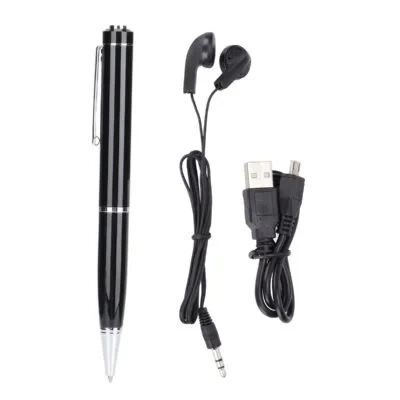
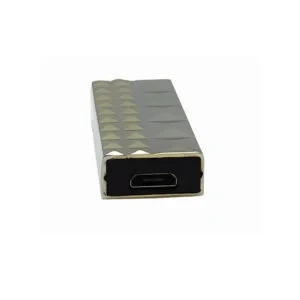
* Note 1: The headphone socket of the recording pen has a card slot. When the headphone is connected to the recording pen, they must be inserted into place. * Note 2: If the red and blue lights flash alternately when you plug in your earphone and start playing MP3 or sound recording, it will prove that the recorder does not have MP3 songs or recording files.
(When earphones are unplugged) Hold the power button until the red light starts flashing. The red light will flash three times, then the device will start recording. Double-click the power button and the purple light flashes once. Purple light flashes three times, the device will enter voice-activated mode.
Note: To check if the device is in voice-activated mode, press the power button once. If blue light flashes, the device is in voice-activated mode.
Plug in earphones. When recordings/music are playing, double-click the “play/pause” button on the earphones to enter deleting mode (purple light flashes). Click “+" or “-" on earphones to confirm deleting the recording/music you are listening to.
Note: The device will delete the current recording or music that you are listening to.
Play/Pause: When playing music/recording file, click the play/pause button, and
then enter the pause state (the purple light last long at this time). Click again to
return to play.
Fast forward and fast rewind: when playing music/recording file, click the
play/pause button to enter the pause state. At this time, long press the '-' key to
fast forward (purple light flash), and long press the 't' key to fast rewind.
(purple flash)
Note: The machine will shut down automatically 3 minutes after suspension without any operation.
When the machine is turned off, insert the data cable into the computer to find the disk, open the synchronization tool, click ok, and then disconnect the data cable to complete time synchronization.
Connect the computer or the power adapter with the data cable, the red light will flash slowly, and the blue light will stay on when it is fully charged. When the blue light comes on, it can be charged ‘for another hour, which makes the battery more powerful. (When the light is turned on, the red light flashes once or there is no response, indicating that the battery is out of power. At this time, the battery needs to be charged before it can work.)
Note: the recording pen should be charged or when the U disk is used, it is better to let the recording pen operate under the state of shutdown.
Due to different computer operating system compatibility, in order to better transfer data, when connecting to the computer, please connect the recording pen through the data cable first, and then connect to the computer through the USB plug.
Due to the occasional crash of the recording pen system software, it can be connected to the computer (the data cable is connected to the recording pen first, and then to the computer). At this time, the mobile hard disk drive will appear on my computer. Select the mobile hard disk drive, right-click, and select format. After formatting, restore to factory Settings. Most faults can be eliminated at this time.
Note: After restoring to factory Settings, the files in the recording pen will be lost. You need to make a backup before formatting and copying the files to the computer or other storage.
First, check whether the USB port of the data cable is loose from the computer, and then check whether the data cable and recording pen are fastened in place. If your computer still doesn't have a removable drive, try switching computers again. Some computers cannot read the disk due to the drive and setup of the computer system.
If you can't read the disk after changing the computer, please contact customer service.
Safe operation Guide
6. Do not place the product near the heat source or in a hot day car, and do not store the product in an environment of more than 60 °C. Claims of toxic or harmful! Substances or element
| Product Code | SW-AD-neck16 | ||||
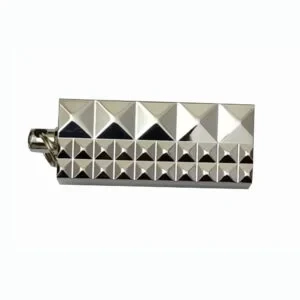
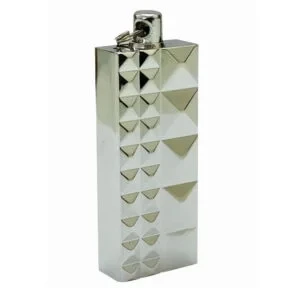
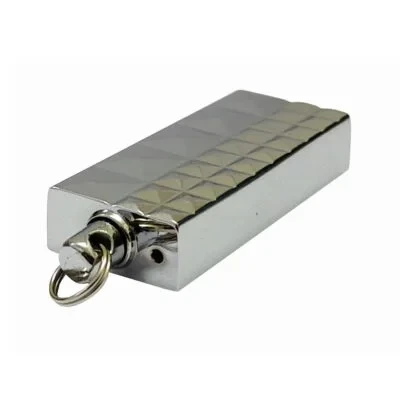
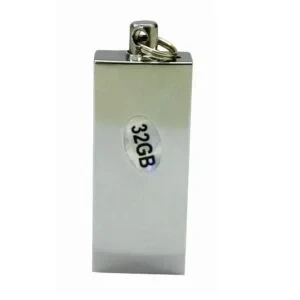
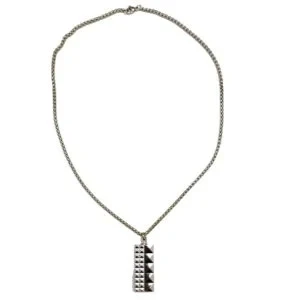
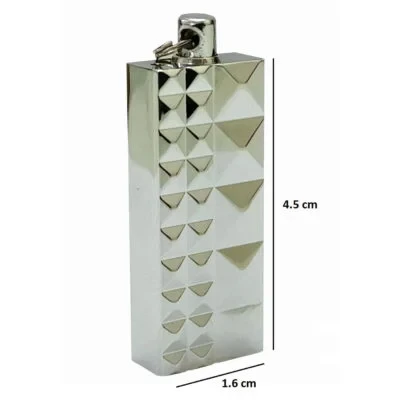
| Design | Small and elegant design, compact format, can be attached to keychain or necklace | ||||
| Audio format | - .WAV | ||||
| Voice Activated Sensor | Built-In | ||||
| Voice-activated | – Configurable voice-activated sensor | ||||
| Recording while Charging | Yes | ||||
| Recording quality | - Select-able 32, 64, 192, 384 up to 50ft | ||||
| Built-in memory | 32GB, 2400 hours at 32kbps | ||||
| Time Stamp on Recordings | Yes | ||||
| Battery | - rechargeable 100mAh/24 hours at 32kbps | ||||
| Operating system | -Windows XP/7/8/10, MacOS | ||||
| Dimensions | 4.5x1.6cm | ||||
| Weight | 16g | ||||
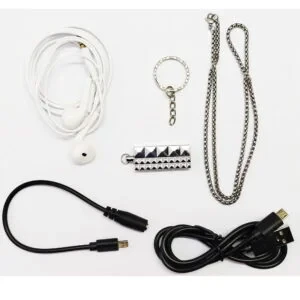
| Package | 1x Main Unit | 1x Charging Cable | 1x 3.5mm audio cable | 1x User Manual | 1x Metal ring |
Warranty with no doubt
On orders over INR 2000

No review given yet!
 Free Shipping on Prepaid Order
 SSL Secure Payment
 24*7 Support
 100% Genuine Products





You need to Sign in to view this feature

This address will be removed from this list